


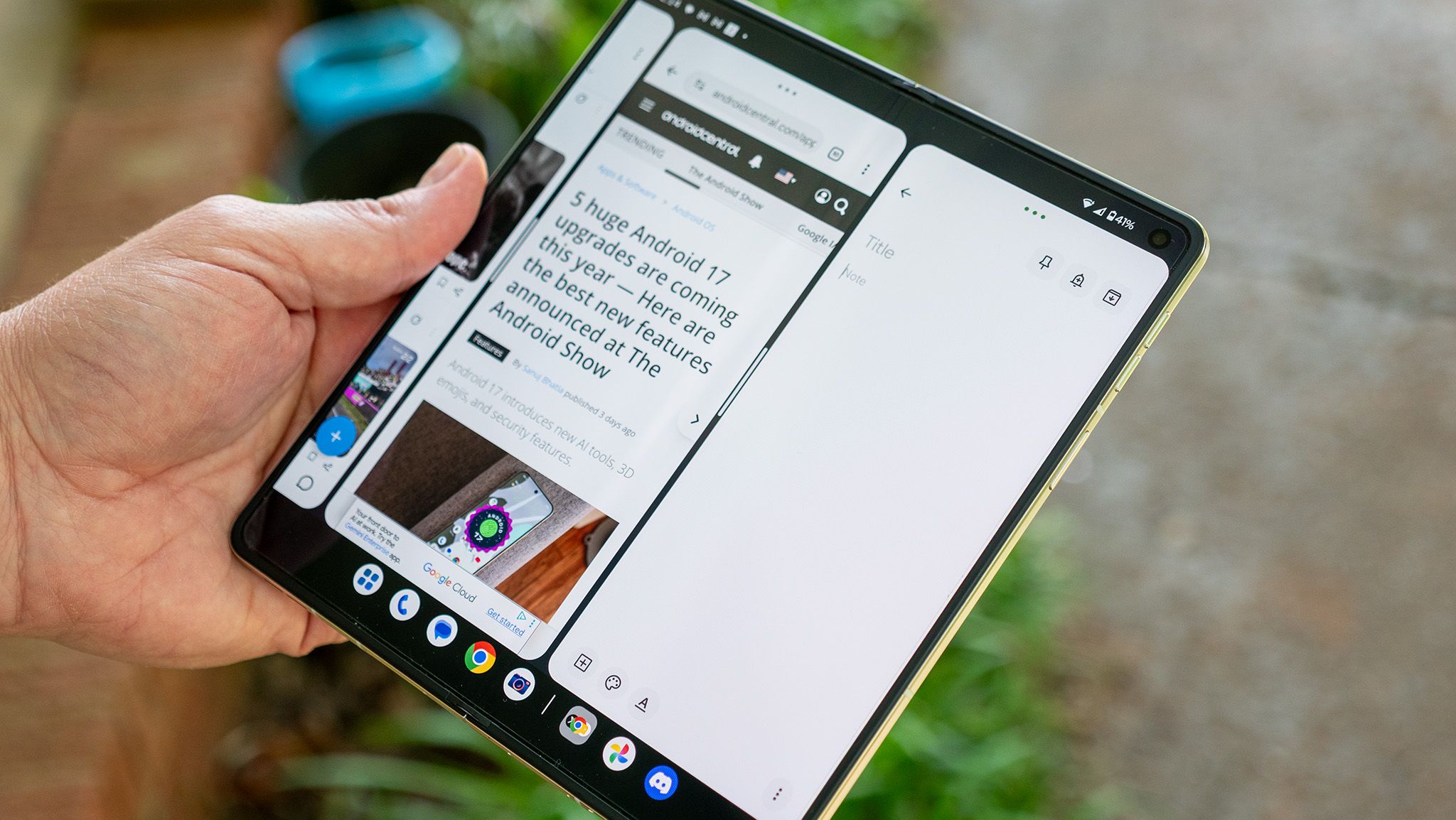
Book-style folding phones are built for creativity and productivity. You get the best of a tablet and a traditional smartphone, all in one package, and the Razr Fold has some of the best multitasking features I’ve used on any foldable phone to date.
Surprisingly, though, several of the best multitasking features aren’t enabled by default on the Motorola Razr Fold, but I’ve been using it for a few weeks now and have unearthed several phenomenal features that are letting me get tons of things done without having to use multiple devices.
Split it to win it

Book-style foldables like the Razr Fold are my favorite kind of smartphone. You get a normal screen on the outside for everyday tasks, and then you can open it up to reveal a massive tablet-sized screen that’ll really let you get things done. I’ve worked from my Razr Fold on the go more than a few times, and that’s all thanks to a handful of fantastic multitasking features that Motorola built into the phone.
The good news is that while many of my favorite foldable power features aren’t enabled by default, many of them are located in a single section within the settings menu. Let’s begin with the taskbar, which is the easiest way to treat this tablet like it’s a proper tablet, letting you instantly launch apps and run them in split-screen without having to navigate back home or perform some annoyingly finicky gesture.
1. Open the settings menu by tapping Settings in the app drawer on your home screen, or swiping down on the status bar and tapping the gear icon.
2. Select Foldable display from the list.
3. Tap Task Bar.
4. Select Always show.

Now, when you unfold your Razr Fold, you’ll see a dedicated taskbar at the bottom of the screen. This taskbar stays put while you have apps open and makes it easy to multitask. You can tap an icon to launch an app in full-screen mode, or press on an icon and drag it to a part of the screen to launch an action.
Try opening one app full-screen first, then tap and drag another app’s icon to one of the following locations:

- The left or right half of the screen will split apps vertically, making them the same size as if you were running them on the outer display. This is perfect for apps that don’t scale to tablet size very well.
- The top or bottom half of the screen will split apps horizontally. I’ve never found a good use for this one, but I’m sure someone will find an app combination where splitting them like this makes sense. Both apps will be short and extra wide, so this is definitely a specialized need.
- The middle of the screen will put the new app on a floating window, which can be moved around, resized, minimized, etc., just like windows on a Windows or Mac computer.
So far, all of this is pretty standard for any book-style foldable you can buy today, but Motorola has built in some truly special multitasking features for when you want to run three apps side by side or two full-screen apps at the same time.
1. Start by opening an app in full-screen.
2. Drag another app’s icon to the left or right side of the screen to split the apps vertically.
3. Find a third app icon, then press and drag it to the Add button that appears in the middle of the screen toward the top.
Now, you should see two apps running in a two-way vertical split, with a third hanging just off the side of the screen. Any time you want to swap over to this third app, just tap the window to slide the carousel. The key here is to tap the windowdon’t swipe over.
Swap full-screen apps
You can also run two full-screen apps back-to-back, giving you access to two tablet-sized apps that you can switch between with a single tap. Here’s how to do that:
1. Unfold your Razr Fold and use the large screen.
2. Open any app you want.
3. On the taskbar, press and drag an app’s icon to the left or right side of the screen to run two apps side-by-side.
4. Press and hold the white bar in the middle of your screen that splits the apps, then drag it to the left or right until you see the window shape change, then let go.
5. The second app should now be stacked “behind” the foreground app. To switch to it, tap the app window on the side of the screen.
6. To go back to single-app fullscreen, press and hold the white bar on the side of the app, then drag it all the way to the side to make it fullscreen.
This 90:10 split, as it became known when the OnePlus Open debuted it in 2023, is the best and fastest way to multitask between two or three apps at a time, especially when using the Razr Fold’s larger inner display. If you find yourself commonly using the same apps, you can tap on the white bar that splits each app’s window, then tap Save app pair to create a custom pair on your taskbar.
You can use the same tactics to split apps horizontally on the outer screen, but it’s less effective since that screen is smaller. Still, give it a try next time you need to run two apps at once, and you might be pleasantly surprised with how well it works!
Lastly, you’ll want to swap out the massive tiles in the Overview menu for something that makes a lot more sense on a huge display. This feature only works on the large inner display, unfortunately, but it’s still worth taking the time to do it.
1. If you use gesture navigation, open Overview by swiping up and holding on the home bar until the multitasking screen appears
Or, if you use navigation buttons, tap the multitasking square key to open Overview.
2. At the top of the screen, tap the grid icon to switch to grid view.

Now, you can quickly switch between several apps at once instead of just one or two. It’s a lot more efficient and makes a lot more sense for a screen of this size. And that’s everything you need to know about multitasking on the Motorola Razr Fold!

Unlock the full power of your smartphone experience with a Motorola Razr Fold. Two screens and powerful multitasking features make it easy to get everything done at once, no matter where you might find yourself.