


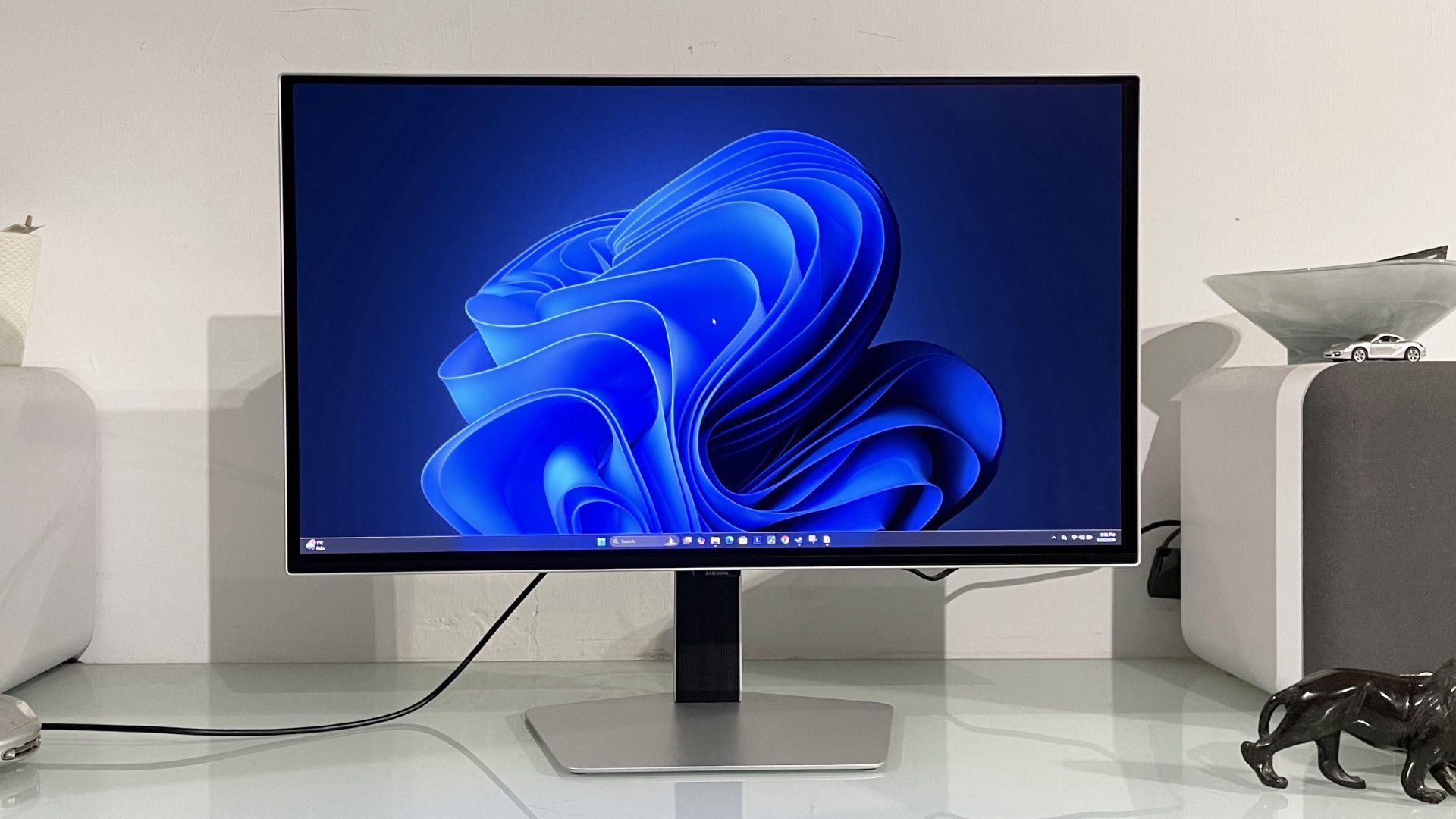
Microsoft’s PowerToys is arguably one of the best additions you can make to Windows 11 (or 10). It adds a bunch of powerful little tools to the operating system, and unlike third-party utilities, these are actually made by Microsoft, so there’s that extra guarantee that they’re going to ‘play nice’ with Windows 11. (Well, hopefully). Plus, you certainly won’t need to be worried that you’re installing software that could be up to no good in the background, like crypto-jacking or other nastiness.
I adopted PowerToys as my tech new year’s resolution for 2026, and I continue to be impressed with the functionality delivered by some of the tools — which aren’t just for power-users, despite the name of this suite (although admittedly some of them are firmly aimed at that category of Windows 11 user).
One of the strengths of PowerToys is that you can pick and choose which toys you want to have active — enabling them, or turning them off, at the flick of a slider — and Microsoft just added a couple of nifty new options with the latest version of the open-source suite, which was released recently.

As a result, you can tie different monitor profiles in Power Display to when Windows 11 is automatically switched into light or dark mode — which is very cool.

I like the overall ease of use here, with simple sliders to operate right there on the Windows 11 desktop, instead of having to mess around with my monitor’s on-screen display (a clunky button-navigated affair that’s best avoided, and that’s the case for many monitors). The Light Switch integration is a thoughtful touch, too.
What’s important to note here is that as Microsoft explainsPower Display “uses DDC/CI to talk to your external monitors”, meaning that it communicates directly with the hardware, making an adjustment just as if you were applying it on the monitor itself.
That’s great because there’s no fudging here — it’s not, for instance, simply applying a dark filter to dim the screen when you turn the brightness down, rather than actually adjusting the monitor settings.
The catch, however, is that Power Display needs that DDC/CI functionality, so the monitor must support it to have full functionality.
Notably, integrated displays on laptops won’t have DDC/CI, and so all you’ll get is a simple brightness slider here, and no other trimmings.
Some desktop monitors, meanwhile, may require you to dive into the settings and enable DDC/CI, but once you’ve done so, you’ll be good to go with Power Display. (In the newest version 0.99.1 of PowerToys, Microsoft has provided more troubleshooting advice for situations where a monitor proves problematic with Power Display — remember, this is still a tool that’s in preview, so it remains a work in progress).
Window of opportunity for Microsoft
For me, Power Display is another great addition to the PowerToys library, and I don’t even have multiple displays (where I’m sure it’ll prove of even more benefit).
A further new tool with v0.99, Grab and Moveis a more simplistic seeming add-on, but it also looks highly useful. This provides the ability to quickly resize or drag a window by clicking anywhere on it and holding down the Alt key, removing some of the fiddlier window management you might encounter at times in Windows 11.
Some people have been clamoring for both of these features to be introduced to Windows 11, and I can see why. So, while it’s great to get them in PowerToys, it would be even better to have these features built into Windows 11 itself, bringing them to everyone on the desktop OS. (Given that not that many folks can be bothered to download PowerToys, or even know what it is — and some think it’s just a suite of tools for power-users and Windows enthusiasts, which, as already noted, is true for some of the utilities, but far from all of them).
What with Microsoft’s ongoing effort to fix Windows 11 and all its problems, as well as honing the operating system in many ways, I think an obvious move is to bring in some of these PowerToys — certainly the two new tools I’ve discussed here. In fact, it seems like a no-brainer to introduce some of the more popular and streamlined add-ons from PowerToys.
Granted, there may be those who shout about ‘more system bloat’, but many of these tools are very lightweight for the functionality they add, and they could be options that you must enable (turned off by default).
Power Display, in particular, has led to plenty of people voicing opinions along the lines of this view expressed on Reddit: “Still absolutely wild that this isn’t just built into Windows, though.”
I wholeheartedly agree that it’s wild, but with Microsoft’s new focus on making sweeping changes, and aiming to please the crowd in its big revamp of Windows 11, it’s possible that the company may be listening to this feedback — and could act on it.
Stranger things have happened — like getting full control over being able to delay Windows updates indefinitely, which is something I never thought would be witnessed in Windows 11 Home.
The best laptops for all budgets

Follow TechRadar on Google News and add us as a preferred source to get our expert news, reviews, and opinion in your feeds.