



If you use both Microsoft Outlook and an iPhone, you may have two separate sets of contacts on each platform. That’s a hassle to maintain, especially if the contacts are virtually the same across the board. Instead of trying to juggle each list separately, your best bet is to synchronize the two lists, so any changes you make in one are propagated to the other. To achieve that goal, you can turn to a few different options.
What you’ll need
- An iPhone
- A Windows computer
1. Exchange synchronization
If you or your organization uses Microsoft Exchange for your mail server, you can sync your contacts between Outlook and your iPhone.
- From your phone, go to Settings, then select Contacts.
- Tap the entry for Accounts, and then select your Exchange or Microsoft 365 account.
- Turn on the switch for Contacts.
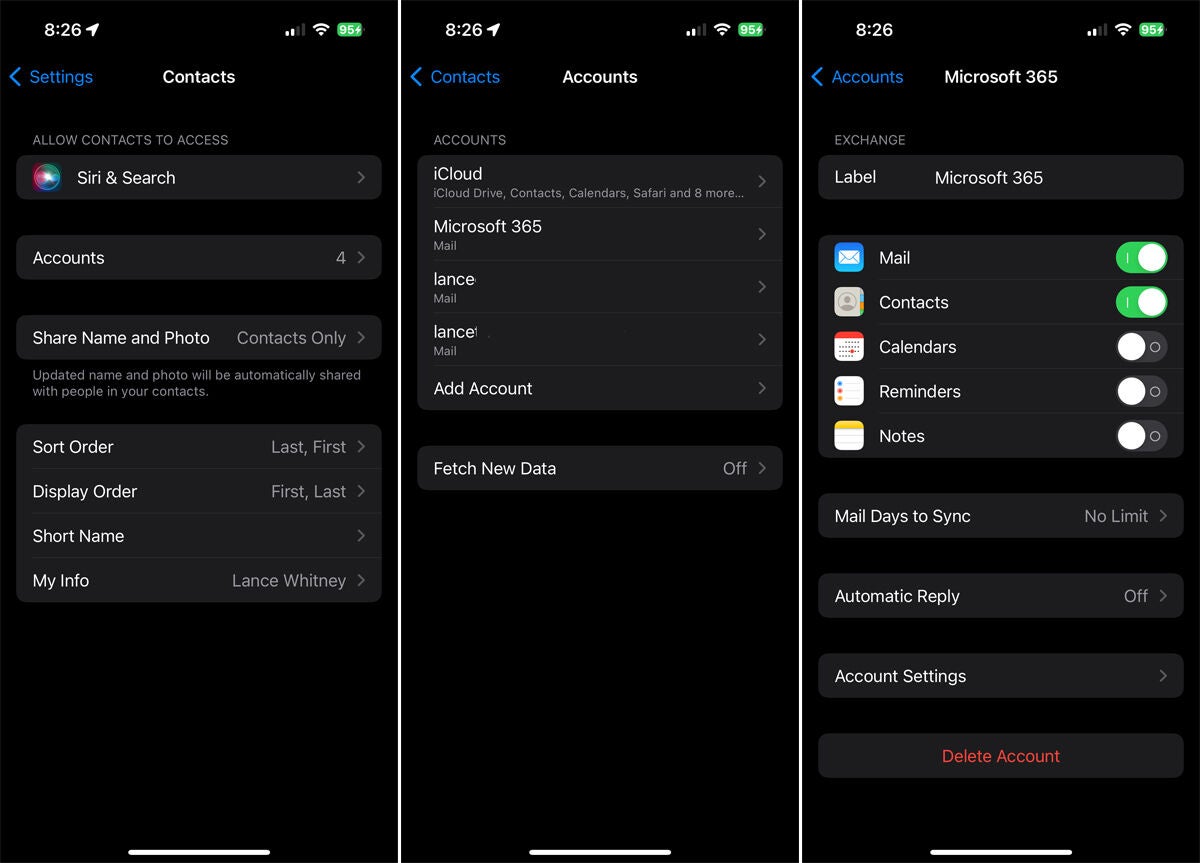
- Check your contacts in Outlook and on your iPhone to confirm that they’re in sync.
2. iCloud for Windows synchronization
A second option is to use iCloud for Windows.
- On your iPhone, go to Settings and tap your name at the top of the screen.
- At your Apple ID screen, tap the entry for iCloud.
- At the iCloud screen, tap Show All and then turn on the switch for Contacts.
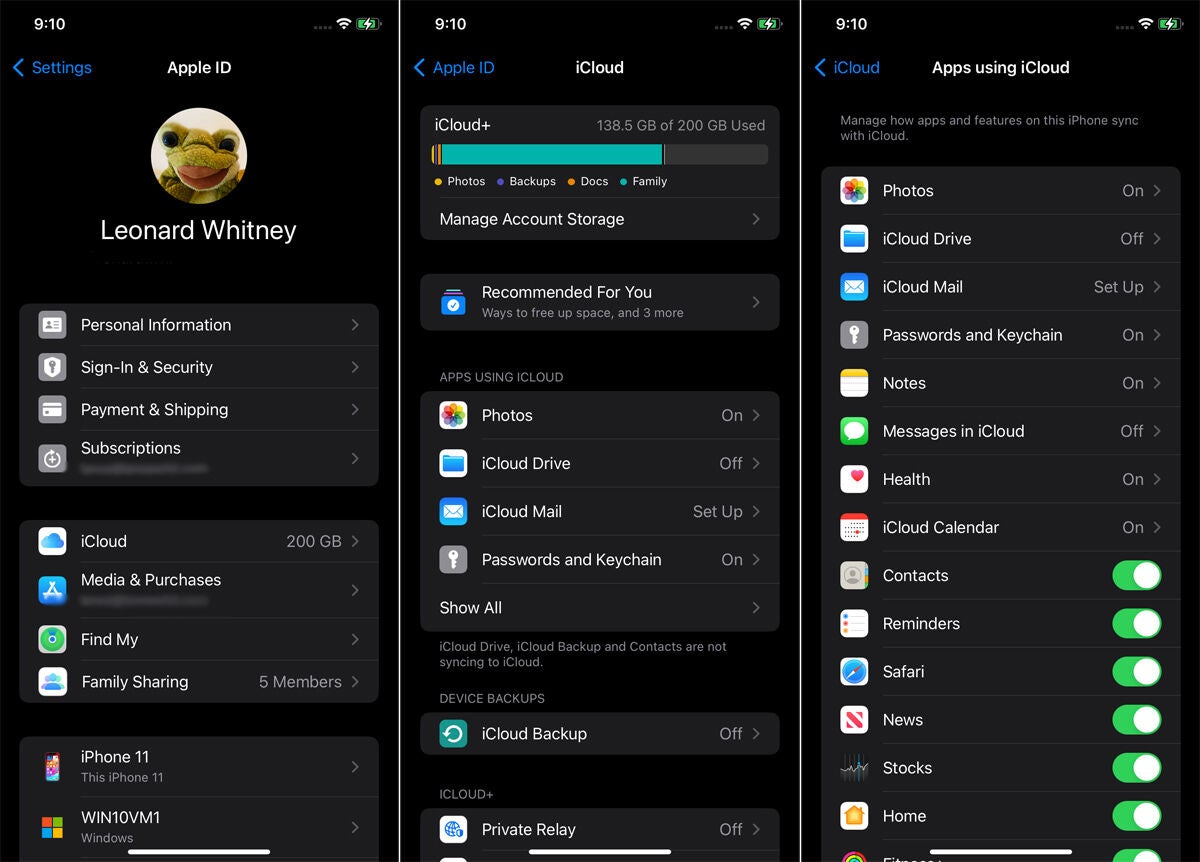
- Next, you’ll need to get iCloud for Windows, which you download and install from the Microsoft Store.
- After installation, click the Start button. In Windows 10, click the iCloud shortcut in the Apps list. In Windows 11, go to the All Apps screen and then click the iCloud shortcut.
- After you open the iCloud app, click the Get Started button, then sign in with your Apple ID and password.
- Proceed through each screen of the setup process. At the fifth and final setup screen for Sync Calendars and Contacts, click the button for Sync Calendars And Contacts.
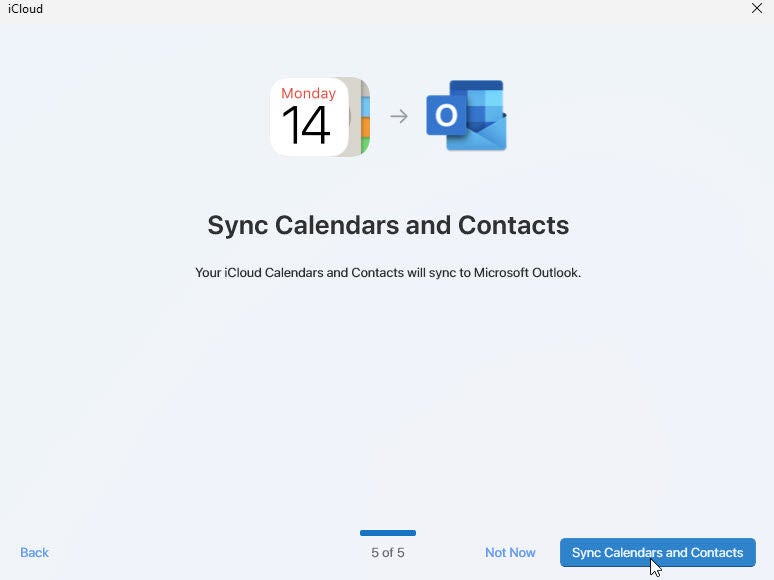
- Click the button for Finish Setup. The iCloud for Windows screen opens to show which content is being synced. Confirm that the setting for Calendars and Contacts is on. You can now close the iCloud for Windows app.
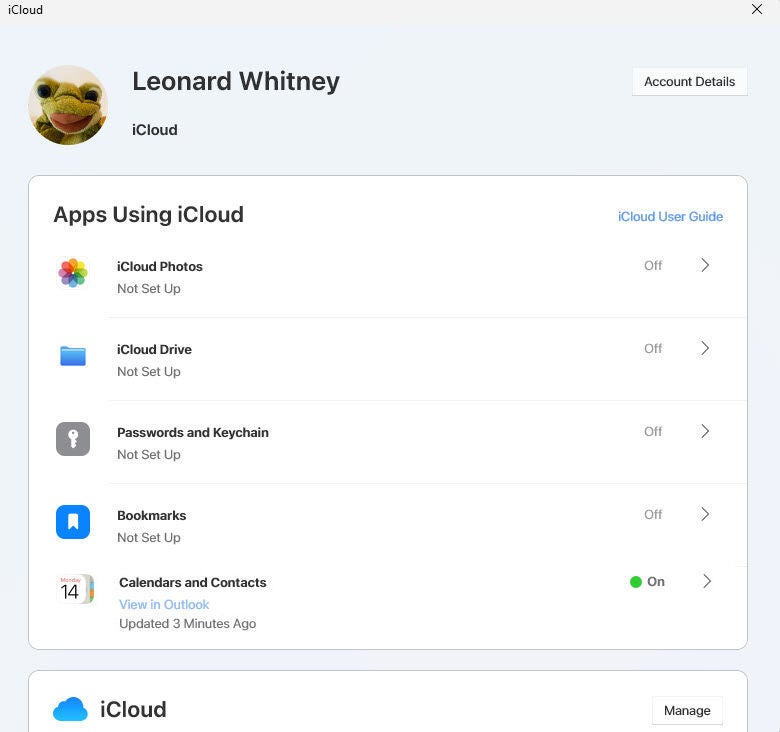
- Open Outlook and click the Contacts icon.
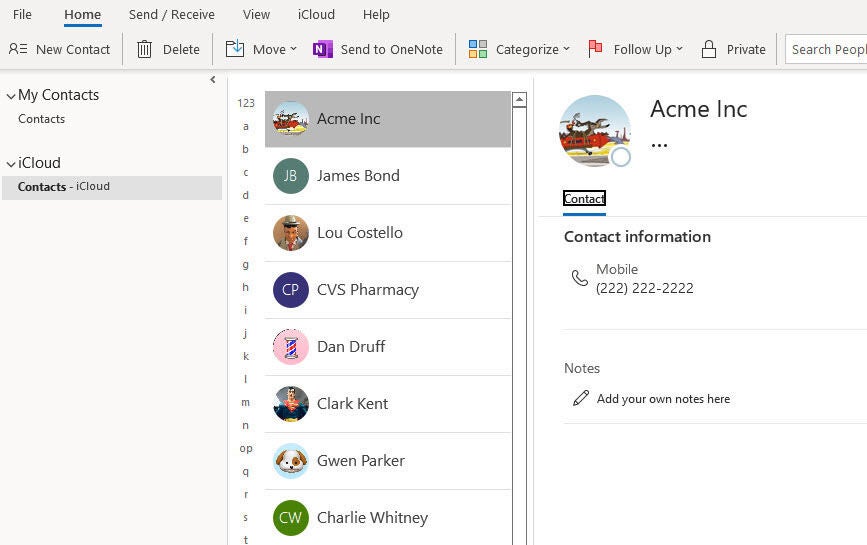
- You’ll now find a contact list for iCloud that will remain in sync between Outlook and your iPhone.
3. iTunes synchronization
If you don’t use Exchange, then iTunes is a third option. The downside is that iTunes is a resource-intensive and often buggy program, and your organization may not allow or support its use. Outlook synchronization through iTunes is technically deprecated, with Apple recommending iCloud instead. But this technique may work for some older versions of iTunes, especially for a home or personal computer.
SEE: How to use multiple Apple IDs on the same Mac.
To download and install iTunes on your Windows PC, browse through Apple’s support document, “Download iTunes for Windows.”
From there:
- Connect your iPhone to your PC.
- Open iTunes, then click the icon for your phone.
- Under Settings, select the option for Info.
- Check the box for Sync Contacts With, and change the source to Outlook.
- If a message appears confirming that you want to switch the sync provider, click the Switch button.
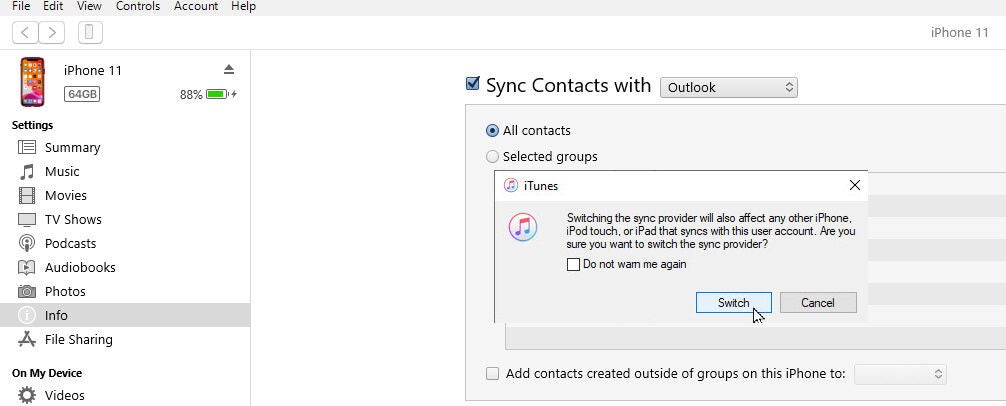
- If you maintain more than one contact group, click the box for Selected Groups and choose a specific group.
- Otherwise, keep the selection set to All Contacts.
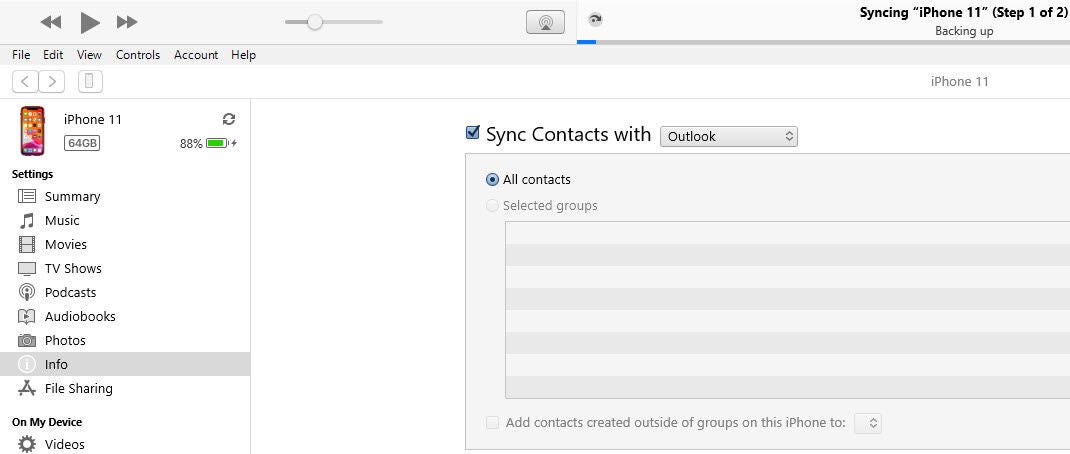
- Click the Apply or Sync button at the bottom to synchronize your contacts.
4. Third-party synchronization
If you can’t or don’t want to use any of the above methods to sync your contacts, one other option is to use a third-party program.
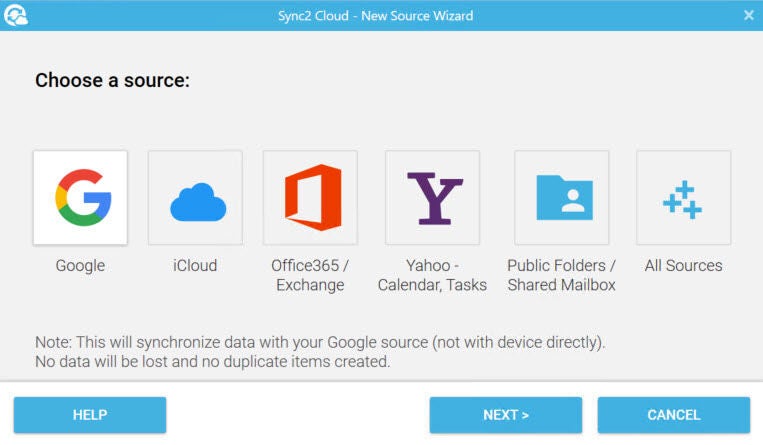
One such product is Sync2 Cloud from 4Team, which normally costs $49.95 for a single full version license. With this utility, you can sync your contacts among iOS and iPadOS, Exchange, iCloud, Google, and other cloud-based services.
What is the best method to sync Outlook contacts with an iPhone?
The best method is the one that best meets your needs. Try the options above and see which works for your use case. In general, exchange synchronization is likely to be the most straightforward method for most people, as it does not require downloading any new applications or paying for a service.
Do I need to use iTunes to sync Outlook contacts?
No. There are several other methods we detailed above. In fact, using iTunes is no longer recommended.
What should I do if my Outlook contacts are not syncing with my iPhone?
If your Outlook contacts are not syncing with your iPhone, Apple recommends checking for service outages or network connection issues first. Next, make sure all devices involved are running the latest version of their operating systems, both Apple and Windows (if you’re using iCloud for Windows). Make sure the iCloud Outlook Add-in is active and that you’re using your default account for Outlook and the same Apple account you use across devices.